Introduction
Welcome to CMSI 185! Your portal into the wild world of code wrangling!
Before we get started, some things to note about these course notes and the site you're currently viewing:
You can add notes inside the website so that you can follow along and type as I say stuff! Just hit SHIFT + N and then click on a paragraph to add an editable note area below. NOTE: the notes you add will not persist if you close your browser, so make sure you save it to PDF when you're done taking notes! (see below) Having said that, know that there is a lot of research that suggests taking hand-written notes to be far more effective at memory retention than typing them.
The site has been optimized for printing, which includes the notes that you add, above. I've added a print button to the bottom of the site, but really it just calls your printer functionality, which typically includes an option to export to PDF.
The coursenotes listed herein will have much of the lecture content, but not all of it; you are responsible for knowing the material you missed if you are absent from a lecture.
Any time you see a blue box with an information symbol (), this tidbit is a definition or factoid; typically these will help you with the conceptual portions of the homework assignments.
Any time you see an orange box with a cog symbol (), this tidbit is a useful tool in your programming arsenal; typically these will help you with the concrete portions of your homework assignments.
Any time you see a red box with a warning symbol (), this tidbit is a warning for a common pitfall; typically these will help you with debugging or avoiding mistakes in your code.
Any time you see a yellow question box on the site, you can click on it...
...to reveal the answer! Well done!
For those of you viewing from home, at this point we'll review the class syllabus, located here:
To get a gist for everyone's coding background, we'll also be performing the dreaded ice-breaker exercise! Tell me your:
Name
Year
Major
If you've had any programming experience, and if so, what?
Your favorite computer science cliche
Computing
So what is this whole "computing" business that I've signed up for?
Computing is a natural science: it is a study of intelligent processes, the information they curry, and the step-by-step means by which they do so.
...did I step into a philosophy class? What the hell was that definition?
Don't leave yet! Although it sounds very abstract, just note that computing has very concrete roots in both natural and electronic media, and we can learn about one by studing the other.
Consider neurons in the brain -- the cells that fire to produce human cognition. These represent a computational process since we can model them as propagating electrical signals to and from each other, input to output.
Another example: in nature, bees dance to tell other hive members where they find food; we developed an algorithm from this as a form of search!
tl;dr: Computation does not happen solely in a computer.
...so what about when it does?
Well, in that case, we talk about computation falling under 5 main categories of study, as follows:
Computer Science is a discipline of computing concerned with algorithms (step-by-step instructions), data, and automated intelligence.
Computer scientists focus on algorithms / programs and judge their efficacy, efficiency, speed, security, and even if they can help explain human intelligence.
In this discipline, we look inwards at the field of computation, and place our tools under the microscope to examine them in depth.
There are many sub-fields and specializations within computer science, including:
Artificial intelligence (yours truly... I'm studying it, that is... not that I'm a robot... or am I?): the design, scruitinization, and theory of autonomous agents and intelligence, often concerting elements of cognitive psychology.
Database systems: concerned with how best to manage, store, and communicate large quantities of data.
Computer graphics / vision: how best to display information to computer users (graphics) or collect visual data for input to the computer (vision).
Software engineering examines the design and logistics behind large-scale computing projects.
Ever look at a marvel of computing (like Google or a video game) and just think: how the heck did they pull that off? How many people worked on that thing?
Well, if so, software engineering has already been on your mind: its focus is largely on team-oriented coding environments, and how enterprises can produce quality programs even when the development is distributed across many programmers (also called developers in this sense, as in software-developers).
Software engineers also verify that the programs they produce meet a variety of quality standards, including:
Correctness: (perhaps the most obvious) that a system does what it was expected to do in all cases.
Efficient: that a system does what it's meant to do in as little time or with as little memory as possible.
Usable: that a standard user in the audience of the product can successfully and easily navigate its features.
...and more! (see Table 1.1 in your textbook)
Sometimes you'll hear a (somewhat falsely-dichotomous) division between computer scientists as the field's theoreticians and software engineers as the ones applying the theory.
Computer Engineering focuses on digital hardware-software synergies that aren't simply computers, but any digital system like robotic instruments and smart phones.
In general, computer engineers dive more into computer hardware than do computer scientists or software engineers.
Whereas computer scientists might be focused on the efficiency of a program, computer engineers might be concerned with the physical power / energy requirements of a chipset, as well as their interactions with the software they'll be running.
Information Technology includes the maintenance and logistics of organizations that employ many computer systems, usually across a specialized network.
Ever had a job where you needed a computer setup? Password reset? Error troubleshot? Complex network routing configured for your office?
Chances are you've interracted with someone in IT, and let me tell you (as someone who worked in LMU IT as an undergrad) it is no easy profession!
Information Systems are concerned with computing solutions and in-house tools for organizations.
If the computer science discipline of database systems is the theory and analysis behind managing large quantities of data, then information system specialists manage the applications.
This usually entails making sure that the large quantities of data are available to other employees of an organization or users of a product in a way that is efficient and safe.
This class (CMSI 185) provides tools to start you down many of the above career-paths, but focuses most heavily on topics of computer science and software engineering.
Programming
So now that we've gotten to see some of the disciplines in computing, let's get down to some specifics.
In particular, suppose I am a computer scientist or a software engineer, and I want to design some sort of program like a simulation that models college drinking habits or a website that sells decorative beer cozies (is that a thing?), I need to know some sort of programming means to achieve my goal.
So, let's start off with a bunch of definitions.
Programming (colloquially, "Coding") is the art of encoding instructions for some agent to carry out.
A program, therefore, is the set of instructions pertaining to a particular application.
"Sit," "speak," and "play dead" are all simple instructions we might give to a dog, but what about encoding more complicated instructions and planning?
A modern video game is certainly a complex set of instructions encapsulated in a program, but they consist of many different pieces.
We need more intricate and formal directions for such procedures, and the same is true in the digital domain.
An algorithm describes the step-by-step instructions that a program (or component of one) executes.
If you've ever cooked anything (I try, it doesn't end well) then you've followed an algorithm!
Making bread consists of:
Adding water to flour
Add some... yeast? Or something?
Mix
Do you knead it here? I think?
Throw that in the oven.
These are ordered steps used to accomplish some task.
A programming language formalizes the rules, syntax, and semantics that the programmer must use to express their algorithm to the computer.
Here are a few of sentences that (try to) say the same thing:
Andrew is an amazing instructor, and I've only known him for minutes!
Andrew si na amzaing inuctsctor, and I'ev lony knwon him fro minutes!.
Instructor amazing is known as the human Andrew, having being that my knowledge of him was existent for the past time unit minutes.
Teh instct 4 cstm 158 beeing Anderw says gud.
What is wrong with bullet #2 above?
There are many misspellings and swapped letters, but the semantics (or meaning) of the (correctly spelled version of the sentence) are correct.
What is wrong with bullet #3 above?
Although there are no misspellings, the sentence does not follow proper grammatical rules and is difficult to understand.
What is wrong with bullet #4 above?
There are both syntactic (spelling) and semantic (grammatical) problems with the sentence that make it difficult to understand.
Now notice something: about the above exercise: the human mind is very adaptive, and can make sense even out of fairly nonsensical sentences.
Computers are not as forgiving as the human mind when it comes to the instructions we give them.
When it comes to the programs we write, we must be perfectly clear in every instruction we give our computers.
The slightest typo, misspelling, or error in the execution of our logic can cause the program to crash, operate improperly, or worse! (explode, maybe? [just kidding {or am I?}])
How Coding Works
To understand coding, you must first understand two important (and highly simplified) facts:
We do not speak the same language that computers do (all they know are 0's and 1's).
Two computers may not even speak the same language! (slightly different... dialects? ...of 0's and 1's?)
So how do we take the English language that we speak, and express this to a computer that knows only 0's and 1's?
Hire a translator, of course!
Source code is the human-readable, programming language-specific text that we (as programmers) write to be later translated and executed by the computer.
Machine code is the machine-readable, execution-ready sequence of instructions that has been translated from source code.
The Translation Process
Your next logical question might be: "So who is this magical translator, and where can I learn to talk in machine code?"
OK, well the first part of that question is logical... The answer: depending on the programming language that your source code is written in, the translation typically occurs in one of two ways:
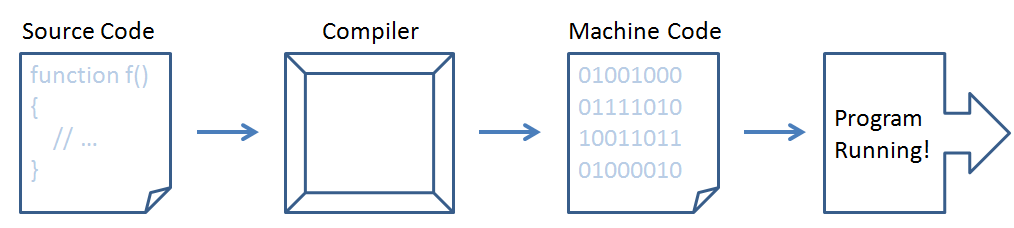
Compiled languages take *fully written* programs in the form of source code files, and perform the translation to machine code of the target machine, which can then be executed.
This process looks like the following:
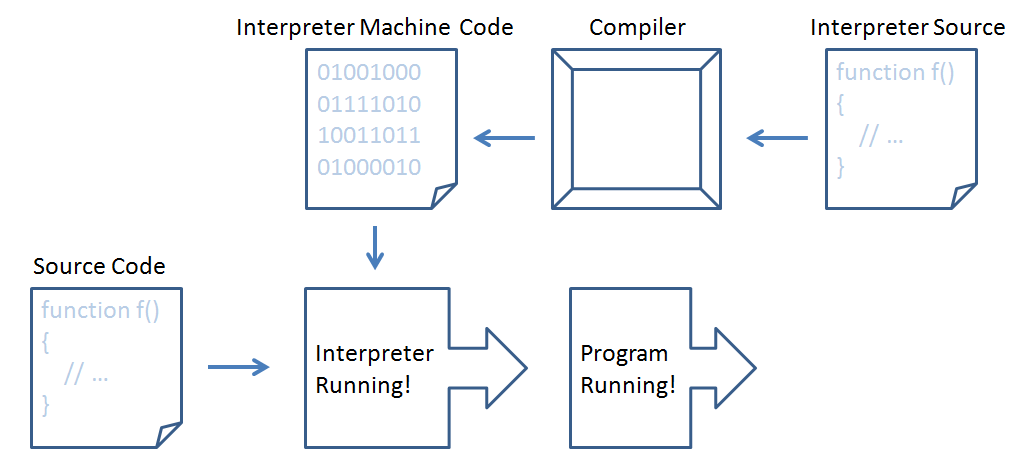
Interpreted languages take either fully-written programs in the form of source code files or individual statements (as in an interactive shell), which are then executed by another program that has been written in / can translate to the language of the target machine.
This process looks like the following:
We'll examine the pros and cons of compiled vs. interpreted languages later in the course.
That said, in CMSI 185, we're going to focus heavily on one interpreted language in particular...
JavaScript
WARNING: Before we discuss anything about JavaScript, be aware that it is in no way, shape, or form related to Java, another programming language, and should not be used interchangeably in conversation.
Just so... you know... you don't sound like a n00b if you say Java when you mean JavaScript and vice versa.
As it turns out, when the early developers were designing JavaScript, Java was already popular and they decided to piggy-back on its popularity by sharing a naming prefix.
OK whew! That said... Here are some quick facts about JavaScript:
JavaScript is an interpreted scripting language that is popularly used in web and server-based applications.
Unpacking that definition:
JavaScript (JS) is interpreted, so it is not compiled (see above section); most interpreted languages are also known as "scripting languages."
JS is used in the vast majority of websites (around 90% of all modern websites use JavaScript in some capacity).
JavaScript has a wide swath of other applications, including servers (see NodeJS) and graphics (see Canvas).
Of course, all of those things are just previews of what's to come...
...and why tell you, when I can show you?
Perhaps you dare to enter the world of my senior group project (written almost entirely in JavaScript) [warning: link may be down, we might have to do an in-class demo]:
So what did we learn from playing around with this crude, but historical shining example of web-based JavaScript?
It can do a lot, and so can you after learning it.
Workflow
So now that I've told you all about how cool JavaScript is, let's take our first steps towards coding with it!
First off, you have to set up your Workflow.
In programming, your Workflow involves the tools that allow you to edit, run, test, and then debug your programs.
Step One: Editing
To edit JavaScript source files, you can use any text editor, but some are better suited for coding than others.
The following programs are good text editors that you can use for programming in JavaScript; I suggest downloading and getting to know at least one of these:
Atom is a lightweight, intuitive text editor that is very aesthetically pleasing. It may, however, take some configuring to get it to look and behave as you want it to.
Notepad++ is another lightweight, superb text editor with lots of customization options, though is available for Windows only.
Native text editors like Notepad on Windows and Textedit on Macs will work, but will be a pain when we start coding more complicated programs.
DO NOT use Microsoft Word to do any programming! You will have a bad time.
More heavyweight integrated development environments (IDEs) like Eclipse are not allowed in this class (nor will they be very useful).
OK! So you've downloaded one of the above or one of your favorite text editors, now what?
Let's follow a couple steps to create our first script.
Create a new file in your editor and save it as "sup-world.js"
In the file, write a single line exactly as follows (which you need not yet understand):
alert("Sup world.");Save the file.
There! You've written your first JavaScript... script!
Now what to do with it? 0_o
Step Two: Running
So we have our source code from Step One above, let's send it to an interpreter to run!
As it turns out, there are many interpreters at our fingertips in which we may run our script. Let's look at a few!
Interpreter |
How to Access |
|---|---|
Browser Console |
Many web-browsers come equipped with interpreters that you can use to run your own JavaScript. Let's look at Google Chrome's console:
Note: this browser console is sometimes referred to as a Read-Eval-Print Loop (REPL) since JS is an interpreted language, we as users can type a command, send it to the interpreter to be read, evaluated, and the result of that evaluation printed back to us, which is then begun again for the next command in a loop. |
Integrated Websites |
Some websites provide a user-friendly interface for scripting and saving scripts. Let's use a popular one called CodePen
|
Native Interpreters |
Some JavaScript interpreters can be installed on your machine (rather than having to use a browser). One such interpreter comes bundled with a JavaScript server called NodeJS. However, using these interpreters is more complicated than the above, so we'll likely revisit this topic later in the course. |
So first off, notice the command we gave our machine, the first of many we'll learn!
The alert function operates in a web-browser, and creates a popup with the message that we specify.
Spoiler alert (pun intended), later we'll learn that alert is a function, but for now, just treat it as a magical incantation that works in the browser!
Try running the following script in one of the browser-based interpreters above.
  alert("computer");
  alert("says");
  alert(10110101);
Now, notice that above, when I had 3 separate alerts, I had to click "OK" 3 separate times to get to the next alert.
If I, as the programmer, wanted to inspect a bunch of values in my program at once, having to click through a bunch of alerts would be very tedious! So, let's look at another tool:
The console.log function discreetly prints whatever we want to the console (in a web browser) or the terminal (in the case of a native interpreter).
Let's try re-writing our script with 3 alerts as one with 3 console logs. Try running this script in Chrome's console and then on jsFiddle.
  console.log("computer");
  console.log("says");
  console.log(10110101);
Why did we see the console log output when we were scripting on the Chrome console, but it did not pop up?
Because the console.log command tells us to output to the developer's console, silly!
The developer's console is for... well... the developer to see, and to hide from a user's eyes.
For this reason, we typically use console.log when we as the programmers are debugging or want to see output from our program, but want to hide that output from our users.
We then use alert whenever we need to bring something important to the attention of our users, without spamming them with a bunch of pop-ups.
So what exactly is happening when we run our JavaScript source through an interpreter?
Our interpreter starts with the first statement we give it at the top of our source code.
It then executes each statement one by one in order (e.g., when we told our browser to alert the three messages above, it did so one at a time from top to bottom).
Do (2) above until we reach the end of the program (or, as we'll learn later with control flow, when we tell our program to stop).
So why did we bother going through the trouble of saving our script using the text editors in Step 1 if we're just going to copy-paste it into an interpreter?
A couple reasons: (1) we want to have a file we can submit to other people / share online / run on a webpage (which we'll see later when we build pages), (2) we want to save our work lest it get lost by the browser (the browser interpreters are not good for this; if they crash, your whole program is gone!), and (3) later, we'll talk about running JS outside of your browser, when it is necessary to run the source code from a saved file.
Step Three: Debugging [when you have bugs -- very likely]
Bugs (colloquial) are errors that you as the programmer have made in your code that elicit undesired behavior.
Everyone will experience some bugs in their code when they're learning to program.
Learning to debug, therefore, is a very useful skill.
Once you've edited your source code (step one) and have run it (step two), you'll often find behavior that is not as you expected. Step three deals with diagnosing where your code fails to do what it set out to do, and then fixing that part of the code.
Since we haven't covered enough tools to debug yet, this will be a topic for next lecture -- stay tuned!