Assignment 4 - Cubepocalypse
This assignment will get your ML-Agents skills at max level!
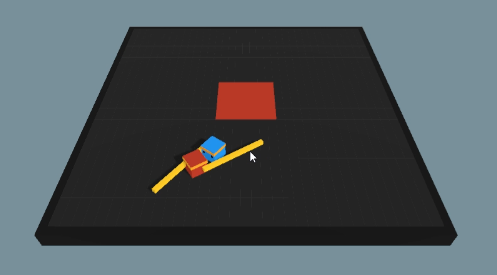
Pictured: a rare, but tender, embrace between two agents in the French Fry Duels Arena, which will be the main payload you'll deliver from this learning experience.
As you complete your assignment, you may be asked to make additions to your Report or Recordings, which will be artifacts you generate alongside your programmatic component. These requirements are tagged in purple boxes like this one so don't miss them!
For any written response, you should collect your answers in a single PDF that clearly indicates which answers pertain to which questions from the spec.
For any recorded / video response, you should upload a video to a hosting service like YouTube, Vimeo, Box, etc. and include a link in your report.
Important: for any video resource, ensure that you can access it without being logged into your account before submitting!
Solution Skeleton
Start with the solution skeleton in-hand!
Inside, there are select Example environments that were covered during the lectures from Unity's ML-Agents framework. We'll be focused on several of them PLUS
one that I've made custom for you to explore... (see Assets/ML-Agents/Examples):
3DBallfor the ball-balancing environment that you'll explore some parameter randomization within.PushBlockfor the block-pushing environment that you'll explore behavioral cloning within.WallJumpfor the curriculum-training wall-vaulting environment that you can explore as inspiration for the finale...Arenafor the hotly anticipated French Fry Wars arena, made fresh for this assignment.
Setup
READ FIRST: You must complete the following setup before you're able to complete the assignment!
Once you have cloned the above, in Unity Hub, use the Add Project from Local button to open the cloned repo.
Importantly: you MUST download and use Unity Version
2023.2for this assignment (you should be prompted to download it when loading into your editor).-
For training your models, you will need the EXACT version of Python to run the mlagents Python package.
Install MiniConda, a Python version / package manager here.
Important: Do NOT install the Distribution version, only the Miniconda version!
During the Miniconda installation, use these installation settings (unless you know better and want it to take over your Python management)
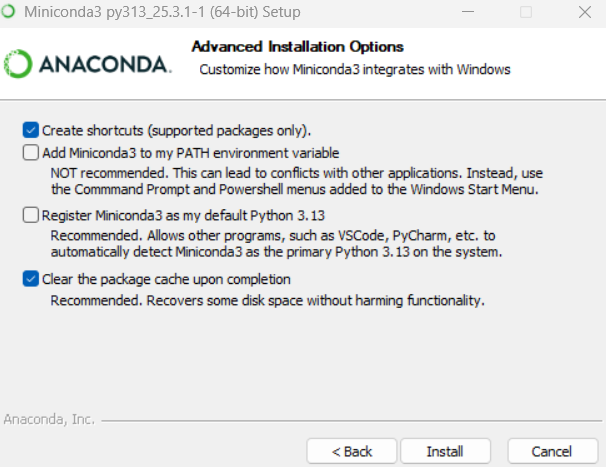
Once installed, open a new Anaconda Prompt. This will bring up a terminal window in which to activate your new Python environment.
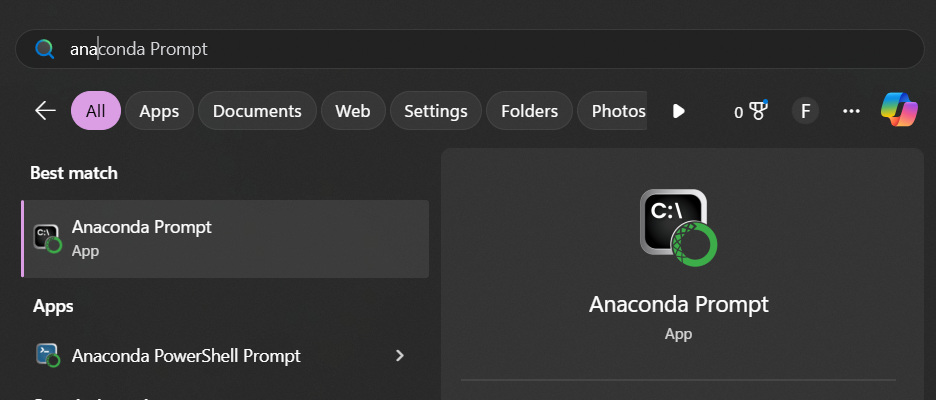
Initiate a new Conda environment with Python version 3.10.12 using the command:
conda create -n mlagents python=3.10.12 && conda activate mlagentsInstall the mlagents Python package using the following command:
pip install mlagentsOnce installed, you can verify the installation by running the following command:
mlagents-learn -hIf you see the help menu, you are ready to begin training your models!
Once open in the Unity Hub, ensure that you can open the Assets/ML-Agents/Examples/3DBall scene and that all assets are visible.
This project uses the following FREE asset packs (credit to their creators):
Specifications
Let's start by dipping our toes in the water of the provided ML-Agent examples, running some variants, and then see if we can generalize what we've learned to a new environment! ...hey, that's kinda like what our little Unity block man is doing! So like us...
[OG Ballin]
We'll begin with a little replication just to make sure you've got everything working from the above.
Open the
Assets/ML-Agents/Examples/3DBalland play the scene without training -- it should default to inference mode with the agents able to use the provided, pre-trained model to successfully balance the ball. If everything works here, let's make sure we're able to replicate the training process.In the Anaconda Prompt that you opened during the Setup instructions in the section above, navigate to the ML-Agents folder in your Assets, i.e., your terminal should look like:
(mlagents) C:\(YOUR_GIT_REPO_HERE)\Assets\ML-Agents>
Initiate the learning environment via the command (replacing the name of the run-id with something specific to your group):
mlagents-learn ./Configs/3DBall.yaml --run-id=sometestname
In a separate Anaconda Prompt, examine the training progress via the Tensorboard by running command:
tensorboard --logdir results
You should be able to see the live updates in your browser by navigating to
localhost:6006-
After training, your model will be located in the
Assets/ML-Agents/resultsfolder.Add YOUR trained model now to the Agent's Prefab under the Behavior Parameters of the Agent GO (you'll need to enter the prefab editor to do this)
While here, also change the Behavior Type to "Inference Only" to start testing.
Now run the scene again and ensure that the balls are still getting balanced properly.
Finally, take a screenshot of the Tensorboard results for your report.
[Hardball]
Now, let's play hardball... by randomizing some of the environment settings, that is!
In the
Ball3DAgent.csscript within the Ball3D Example, find the SetBall method and change the scale to be 2.0f.With your previously trained model still controlling the agent in Inference mode, run the scene again and see how your agents do.
In your report, describe the performance of your agents in this modified environment and your explanation for why they perform this way. Use proper vocabulary to discuss ML model generalization.
Repeat the process from the problem above to create a new model to deal with variations in the environment by instead using the
3DBall_randomized.yamlconfiguration.Remember to reset your agent's Behavior Type to default before running the training!
Now, attach your new randomized-training-parameter model to your Agent's prefab and re-run the scene in Inference Mode for their Behavior type.
In your report, attach the new model's Tensorboard output and then explain how the new model performs during testing compared to your old one along with an explanation for why there are differences, if any.
[Show 'em How It's Done]
Who better to teach the machines than us, perfect humans?
For this demo, we'll mimic the PushBlock example shown during the lecture. Open up
Assets/ML-Agents/Examples/PushBlockand copy the PushBlock scene into a new scene called PushBlockBC. Delete all Area prefab instances in your new scene except for 1, this is where we'll record our demonstrations.In your PushBlockBC scene, set the agent's Behavior type to Heuristic only. Run the scene and get a little warmup practice pushing that block. You want your actual recordings to be pretty perfect.
Once you're an expert block pusher, return to your agent and add a Demonstration Recorder component configured with the necessary parameters. Ensure that the Record checkbox is checked, and get to demonstrating! You should need to record roughly 50 - 100 games (depending on how pro you are).
With your demonstrations in-hand, tweak the provided PushBlockBC.yaml Config in the Configs folder to point to your demonstrations (wherever you saved them).
Start up the
mlagents-learnenvironment in your Anaconda Prompt with the given PushBlockBC.yamlRun the standard PushBlock scene with all of the duplicate Areas to see your agent train off of your demonstrations!
In your report, include a screenshot of both your mlagents-learn reward progress from the Anaconda Prompt terminal and your Tensorboard graphs.
Once your agents appear to have "gotten it," return to your PushBlockBC scene and replace the agent's Model with the newly trained one in your results folder.
Record a video of your agent performing in the PushBlockBC scene in Inference Only mode and include in your report.
In a paragraph, comment on any human tendencies you see echoed in your mini-me version compared to the versions trained using only reinforcement learning. Comment on the pros and cons of these behavioral quirks being present in your agents.
[French Fry Duels]
Are you prepared to FRY?!... French Fry, that is, as we expose one of Forney Industries' most anticipated titles: French Fry Duels. This next gen arena experience pits two French-Fry wielding cubes against each other in a floating arena with lava center. Two cubes enter, one exits... to crispy perfection.
Here's a demo with me getting my ass kicked by an agent with millions of games of experience.
In this heart-pounding minigame:
Blue cube vs. Red cube: win by knocking your opponent either out of the ring, or into the fiery pit in its center. (The arena will dramatically flash the color of the winning player)
Hitting your opponent with your french fry will apply 400 Newtons of force in the direction of impact. Also, you can jump, raining fast(food) justice from above.
The problem: we haven't implemented the AI opponent for the game yet... and oof, how the heck should we program that?!
The secret: we'll have the AI learn some competitive behavior instead!
Before diving into any implementation, you might want to do some light reading on the Unity ML-Agent docs for configuring your agents.
Once ready, first step: we need to configure the actual learning agents with all of the components needed for mlagents-learn to take over the training.
Head on over to
Assets/ML-Agents/Examples/Arenaand open the Arena scene. Observe the two agents staring one another down like two prize-fighters at weigh-in, French Fries in-hand (actually, do they have hands?), hungry... for blood!Don't be upset that the agents are not centered / symmetrically placed in the Arena -- at the start of each round, they will randomly spawn somewhere on their side of the fiery pit.
...Unfortunately, if you run the scene right now, no blood will be spilt because they have no ability to move or learn. Let's just say they're sleeping.
First, you need to edit the ArenaAgent prefab in order to add ALL necessary components to interface with the ML-Agents framework. This includes everything from the ArenaAgent script skeleton provided to adding any necessary sensors.
Hint: take a look at the WallJump agents here for inspiration, you can get a pretty good agent just by copying most of their settings.
Once all components are in place, open the ArenaArea prefab to do the following:
Add the Red and Blue agents that you configured to the ArenaManager's script component.
Change the Blue agent's Behavior type to Heuristic Only.
Launch the Arena scene, and take a recording of you mercilessly bopping the Red agent out of the arena and into the fiery pit of hell (even if they are not moving / mirroring your choices if you've put both on Heuristic control).
If everything works here (at least in your tiny test above), you're ready to really put that sweatband to use and start training!
[Crisped to Perfection]
Time to put on your favorite training montage!
Open up the ArenaTraining scene -- wow, that's a lot of Arenas! We're going to be training these fellas in parallel.
Firstly, you have to decide on your reward function. Open up ArenaAgent.cs and decide when, and by how much, each agent should get rewards / punishments.
Recall that this is a symmetrical learning environment, so your agents will share the same ArenaAgent.cs script. If configured properly, this is all you should need for triggering the correct rewards.
For some inspiration, again, you can inspect the WallJump agents' scripts and the rewards the Unity team associated there... but you'll need to add some aspects to the reward as well. Hint: take a look at some of the added methods we define within and consider which events might correspond to fitting rewards.
With your rewards set, time to configure your Arena.yaml training configuration. Create this with any of the desired parameters in the
Assets/ML-Agents/Configsfolder.Once again, feel free to use another of the provided Example Environments' .yaml files as a starting point -- one in particular looks a *lot* like the type of environment you're trying to train here! Otherwise, I leave your choice of training up to you!
Important note: remember that the Behavior name you define in the .yaml must match your agents' Behavior component name, precisely.
Ensure that your agents' Behaviors have been set back to Default in the Arena prefab and that all other training parameters are to your liking (though you may want / need to refine these later once you've seen how training goes).
Launch the
mlagents-learnenvironment in your Anaconda Prompt and then play the ArenaTraining scene to start the training sequence.This can take awhile! I let my solution sit for a good 5,000,000 steps before I saw the training performance start to level out. You may also need to restart if you notice that things aren't shaping up as you'd expect.
You'll know you have reached success when you can repeat the [French Fry Duels] human vs. AI arena again and get your ass handed to you by your now-trained agent.
In fact, for your report, record a video of your agent kicking your ass in the Arena scene. Twirl your Blue agent around 3 times at the start of the video to make it clear which is you.
Lastly, include a copy of your Arena.yaml in the report and, in a couple of paragraphs, discuss what training strategies you used alongside your choices for the agent's sensors and rewards.
You've made it through yet another arena of your own, congratulations! Hopefully, if anything, this assignment has made you appreciate how you can incorporate your own ML agents into whatever setting you see fit.
Grading
Your submission will be graded on successful completion and report on all Problems listed above. Each are weighted equally.
Since some portions leave some room for creativity / interpretation, feel free to reach out if you have questions of whether or not your approach meets the stated spec.
Submission
You will be submitting your assignments through GitHub Classroom!
What
Complete all requested sections of the skeleton above AND finalize your report in a /doc/ subdirectory as shown in the skeleton before
pushing your finished project to your GitHub Classroom repo.
How
To clone this assignment (if you need a refresher), consult the guide here:
To submit this assignment:
Simply push your final, submission copy to the GitHub Classroom repository associated with your account.
Place your name(s) at the top of *all modified* files AND in the accompanying
readmefile.